Sample No. 0219
Google Play’s My Apps Shortcut Speeds Up Android App Updates
Long-press the Google Play icon to reach app updates faster, review pending downloads, and check again when the list looks complete.
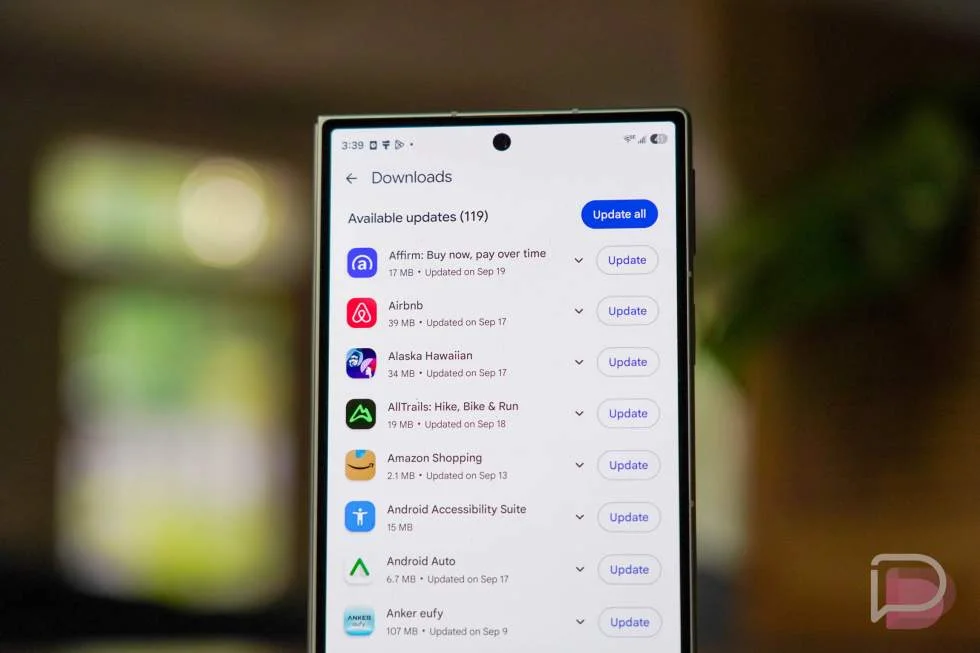
Updating Android apps takes fewer steps when you use Google Play’s shortcut menu. Long-press the Play Store icon, choose “My Apps,” and you’ll land on the screen where you can review or install updates. It’s a small change to a routine task, but a useful one if you regularly manage several apps or devices.
The shortcut doesn’t update anything on its own. It skips the trip through Google Play’s account menu and takes you directly to the app update area, where you can decide what happens next. That distinction matters: you can update everything at once, or inspect the list and pick apps individually.
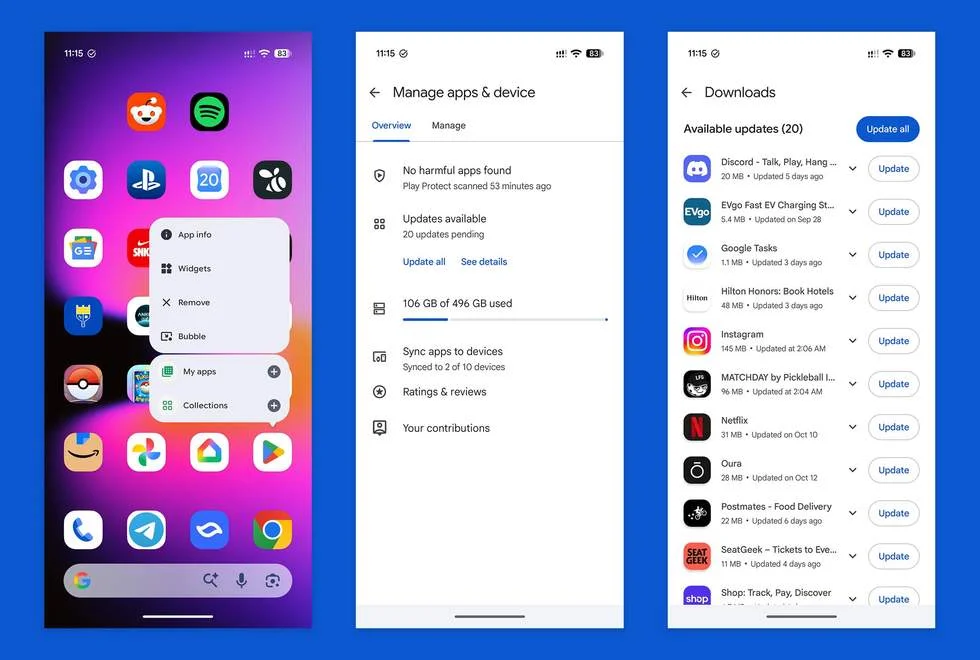
Get to the update screen from the app icon
Start by finding Google Play on your home screen or in your app drawer. Press and hold its icon until the quick actions menu appears, then tap “My Apps.” Google Play opens to the page for managing app updates.
From there, look for the “Updates available” section and its “Update all” button. Tap it to start updating the apps shown as ready for an update. The usual route takes more navigation: open Google Play, tap the account icon, choose “Manage apps & device,” and then locate the update controls. The long-press route removes those intermediate screens.
There are five actions in the full shortcut flow: find the icon, press and hold it, choose “My Apps,” find “Update all,” and tap the button. In practice, the first three get you to the useful screen; the final two depend on whether you want to start every listed update.
Quick actions are attached to the app icon, so you don’t have to open Google Play first and then navigate through its menus. For a task you repeat, removing a few taps makes the process easier to remember and faster to reach. The feature is especially handy when the update page is something you check routinely rather than only when an app prompts you.
Review the list before updating
If you want to know what’s waiting before installing anything, tap “Updates available.” That opens Google Play’s “Downloads” page, where you can see the apps with updates and choose which ones to update. The page also has an “Update all” button, so you can still start the full list after reviewing it.
This is the more deliberate option when you’d rather handle apps one at a time. The shortcut brings you close to the decision point, while the Downloads page gives you the list to inspect. For someone managing a busy phone, that can make it easier to spot which apps are changing before starting a batch of updates.
The two routes lead to related controls, but they serve different habits. If your priority is reducing steps, go straight to “Update all.” If you prefer to see the pending apps first, open “Updates available” and select individual entries. There’s no need to begin with the longer account-menu path for either choice.
Check once more after the updates finish
Google Play may show “You’re all set” on the Downloads page after the listed apps have updated. The page also provides a “Check for updates” control. Tapping it asks Google Play to look again, and the source article reports that this can reveal more apps with updates available.
That extra check is useful because the first completed batch doesn’t always mean the page has nothing more to show. If you’re trying to finish an update session, check again after the initial updates complete and review any additional results. It’s a quick follow-up that can save you from assuming the first list was the final one.
For everyday use, the practical routine is simple: long-press Google Play, select “My Apps,” then either update the listed apps together or open the available-updates section to review them. Once the first batch finishes, use “Check for updates” if you want Google Play to search again.
This shortcut changes navigation, not the update process itself. It won’t decide which apps you should install, and you still choose whether to update all of them or make individual selections. But for a recurring maintenance task, getting directly to the right screen is a worthwhile improvement. Keep the shortcut in mind the next time you’re checking for app updates.